---
updatedAt: 2025-05-08T20:32:33.000Z
agentTools:
projectIndex: https://learn.vtex.com/llms.txt
---
# Linking an app and using it on a store's theme
{`
`}
# Linking an app and using it on a store's theme
## Introduction
Since you're already familiar with Store Framework, you know that we use blocks, like `shelf` and `sku-selector`, to create a VTEX IO store. In this step, you're going to create a block that is going to be used in your store's home page theme.
## Adding a dummy text to our component
1. In the local template cloned, open up the `Countdown.tsx` file. You will see that it contains a template implementation of a React component, which is an empty `div`, as shown below:
```tsx
//react/Countdown.tsx
import React from 'react'
interface CountdownProps {}
const Countdown: StorefrontFunctionComponent = ({}) => {
return
}
Countdown.schema = {
title: 'editor.countdown.title',
description: 'editor.countdown.description',
type: 'object',
properties: {},
}
export default Countdown
```
Some things to pay attention:
* The typings for the component props are defined in here:
```ts
interface CountdownProps {}
```
* This schema refers to the content that it's shown in the Site Editor:
```tsx
Countdown.schema = {
title: 'editor.countdown.title',
description: 'editor.countdown.description',
type: 'object',
properties: {},
}
```
> In order for your block to **accept user customizations**, you need to export a `schema` in the React component responsible for the block using [JSON *schema*](https://json-schema.org/). This will, automatically, generate a form in Site Editor linked to the block that you're developing.
2. Now, let's add a `h1` tag inside the component.
```diff
const Countdown: StorefrontFunctionComponent = ({}) => {
- return
+ return (
+
+
Countdown Test
+
+ )
}
```
3. Now, in order to see the block that you've just created, it's necessary for you to declare the block that the app defines in a theme.
> Which theme should I use?
In case of already having a theme from the previous courses, you can use it. However, if you do not have one, you can use `vtex.store-theme`, which can be cloned by running this command in your terminal.
```
git clone https://github.com/vtex-apps/store-theme.git
```
> Note: It can be cloned in a folder of your preference, but not inside the app's directory that you're developing.
Now, to avoid conflicts, go to your terminal and unlink any theme or apps you have linked
```
vtex unlink --all
```
With both repositories ready to go, one need to link both, in two different terminals, using the following command:
```
vtex link
```
> Remember to use your own workspace!
4) With both links active (theme and custom block), let's add the block into the theme. To do that, it's necessary to add it in the theme's dependencies:
```diff
{
...
"dependencies": {
...
+ "vtex.countdown": "0.x",
...
},
...
}
```
5) And lastly, we do want to add the block to the store, in order for it to be seen. Inside the file `store-theme/store/blocks/home/home.jsonc`, declare `countdown` block:
```diff
{
"store.home": {
"blocks": [
+ "countdown",
...
]
...
}
...
}
```
The expected result is to find a `h1` in the top of the store, you can see it below:
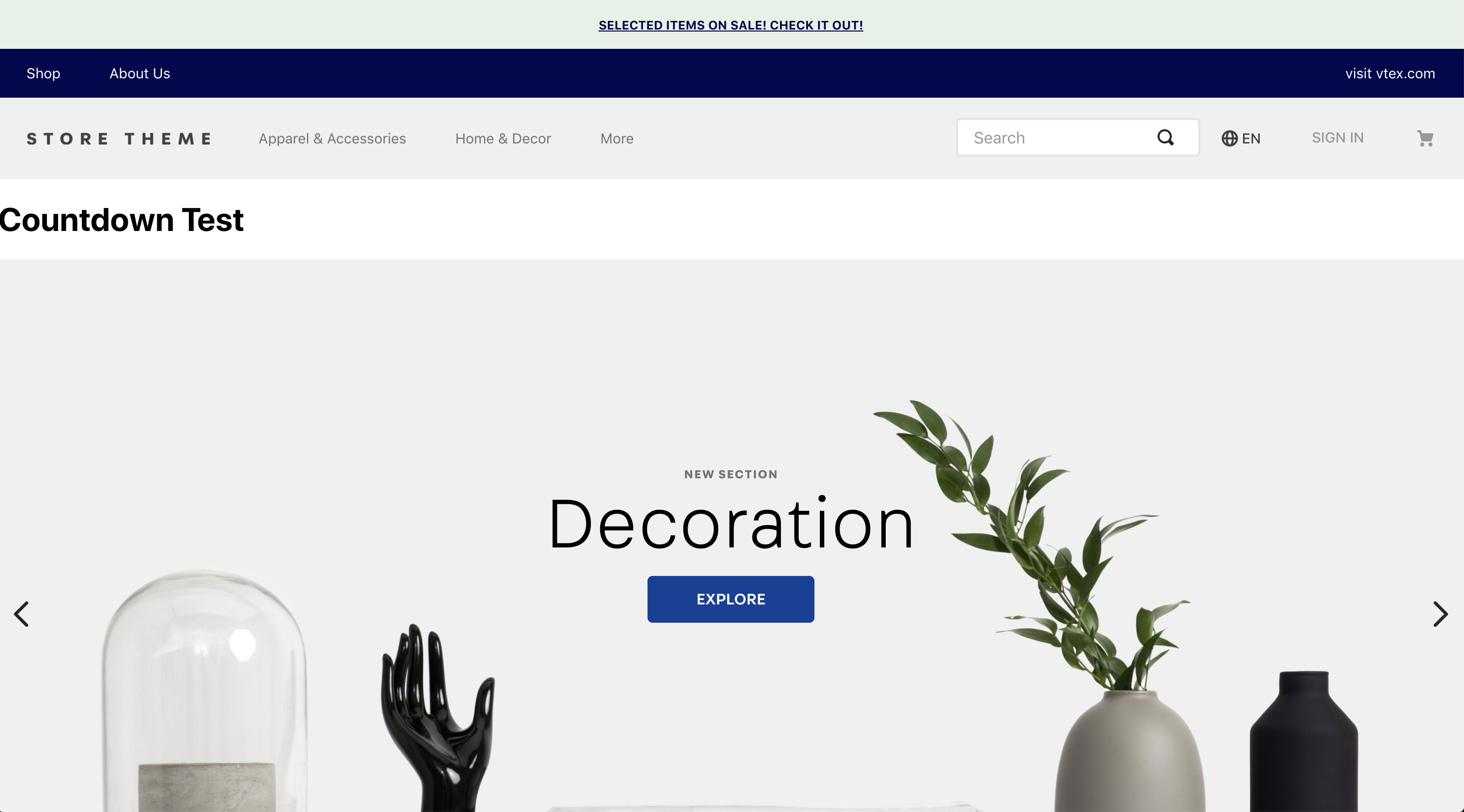
> In case of adding the block as the last one on the `store.home`, you're going to see it in the bottom of the page.
### Any questions?
See the [answersheet for this step](https://learn.vtex.com/docs/course-store-block-step02component-answersheet-lang-en) or check our \[office hours] on the VTEX Developers channel()
Help us make this content better!
VTEX IO courses are open source. If you see something wrong, you can open a pull request!